

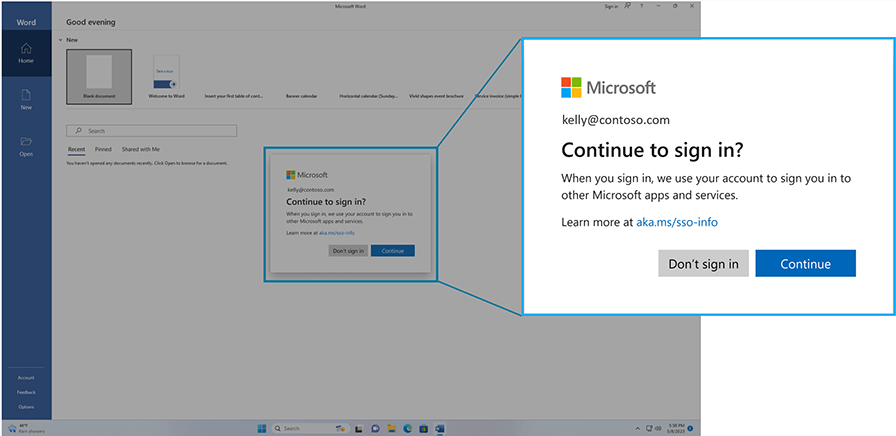
Microsoft has finally introduced a supported administrative control for the Windows “Continue to sign in?” prompt. For organizations in the European Economic Area, the prompt has been a small dialog with a surprisingly large operational impact. A user signs in to Windows with a Microsoft Entra ID account, opens Edge, Microsoft 365 Apps, Company Portal, OneDrive or another Microsoft application, and is then asked whether Windows may reuse that account for single sign-on. This is where the Admin control for SSO prompts comes into play, that choice makes sense on a personal or unmanaged device. On a fully managed corporate device, however, it can interrupt the exact sign-in experience that IT has already designed through Microsoft Entra ID, Conditional Access, Windows Autopilot and Intune. Starting with the July 2026 Windows security update, Microsoft now supports a registry policy that automatically accepts the SSO permission on eligible managed Windows devices:
Registry path: HKLM\SOFTWARE\Policies\Microsoft\Windows\AAD

Value name:   AutoAcceptSsoPermission

Value type:   REG_DWORD

Value data:   1
Download the remediation script here

All official Microsoft Documentation can be found here

Why does Windows show this prompt?
Microsoft changed the Windows sign-in experience in the European Economic Area so that signing in to Windows no longer automatically means that the same account is reused by other Microsoft applications and services.
Instead, Windows asks the user for permission the first time a supported application tries to reuse the Windows account. When the user selects Continue, Windows can use that account for SSO and the prompt should not appear again for that scenario.
The prompt is therefore not the same as:
- The Microsoft Entra Stay signed in? prompt
- An OAuth application-consent prompt
- An MFA prompt
- A Conditional Access interruption
- A Windows Hello for Business provisioning prompt.
This distinction matters. Disabling the Stay signed in prompt or changing application-consent settings does not solve this Windows SSO prompt.
What Microsoft has added
Understanding the Admin Control for SSO Prompts
The new AutoAcceptSsoPermission policy lets an administrator accept the Windows SSO permission on behalf of users on eligible managed enterprise devices.
The setting is supported on:
- Windows 11, version 24H2
- Windows 11, version 25H2
- Devices with the July 2026 security update, KB5101650, or a later cumulative update
- Managed enterprise devices using Microsoft Entra ID accounts.
Microsoft explicitly states that the policy does not remove prompts for personal Microsoft accounts and does not apply to unmanaged devices.
At the time of writing, there is no dedicated Intune Settings Catalog entry for this control. The supported configuration is therefore deployed as a registry policy using Intune Remediations, a platform script, a Win32 application, Group Policy, Configuration Manager or another management tool.
Where this makes the biggest difference
Windows Autopilot and first-day user experience
A modern Windows deployment is often designed to feel almost passwordless:
- The user signs in during Windows Autopilot.
- The device joins Microsoft Entra ID and enrolls into Intune.
- Windows Hello for Business is configured.
- Required applications are installed.
- The user reaches the desktop and opens Microsoft 365 Apps.
The extra SSO permission prompt breaks that flow. Users may interpret it as another authentication request, a consent decision they do not understand, or even a warning that something is wrong.
Some users choose Don’t sign in, after which applications may not behave as expected. The service desk then receives reports such as:
- “Edge is not signing me in automatically.”
- “Office asks me to sign in again.”
- “Company Portal does not recognize my account.”
- “SSO worked on my old device but not on the new one.
Deploying AutoAcceptSsoPermission before or during the initial device configuration removes that ambiguity and restores a more predictable managed-device experience.
Shared, frontline and task-worker devices
The prompt can be especially disruptive on devices used by many users, such as reception systems, warehouse devices, training rooms, clinical workstations and other shared-device scenarios.
On these devices, administrators usually want sign-in behavior to be:
- Repeatable
- Easy to explain
- Independent of user decisions
- Aligned with the organization’s Entra and Conditional Access design.
A dialog that asks each user to make an SSO decision introduces variation into a tightly controlled workflow. Automatically accepting the permission can reduce failed sign-ins and avoid users making different choices on otherwise identical devices.
Test shared and multi-user scenarios carefully, because application state, profile cleanup and session handling can differ between products.
Application migrations and tenant onboarding
The setting is also useful during:
- Microsoft 365 tenant migrations
- Domain-to-cloud or hybrid-to-cloud transitions
- Microsoft Entra join projects
- Replacement of classic imaging with Windows Autopilot
- Onboarding of newly acquired companies
- Large-scale device refresh projects.
These projects already change enough for the end user. Removing an unnecessary prompt reduces the number of variables during rollout and makes it easier to distinguish an actual authentication problem from a user-choice problem.
Reducing avoidable support tickets
This control is not merely cosmetic. Every ambiguous prompt creates a decision point, and every decision point can create inconsistent state.
The real operational benefit is consistency:
- The same policy is applied to every targeted device
- The account reuse decision is no longer dependent on user interpretation
- Troubleshooting becomes more deterministic
- First-line support has one less branch in its decision tree.
The important insight: registry compliance is not functional readiness
This is the part that is easy to miss.
A remediation can report Compliant because the registry value exists, while the prompt still appears because the device has not yet installed the required Windows update or is running an unsupported Windows version.
There are therefore two separate questions:
- Configuration compliance: Is AutoAcceptSsoPermission set to 1?
- Functional readiness: Is the device running a supported Windows build that understands the policy?
The scripts in this post intentionally use the first definition for remediation compliance. That keeps the remediation idempotent and allows you to stage the registry setting before every device has completed its Windows update rollout.
However, do not use a green remediation report as your only proof that the user experience is fixed. Validate OS servicing and test the actual sign-in flow on pilot devices.
For KB5101650, Microsoft lists OS build 26100.8875 for Windows 11 24H2 and 26200.8875 for Windows 11 25H2. Later cumulative updates should also contain the change.
This leads to a better rollout sequence:
- Confirm that your update rings, feature-update policies or Windows Autopatch deployment are bringing devices to a supported build.
- Deploy the remediation to a small Windows 11 pilot device group.
- Test Edge, Microsoft 365 Apps, OneDrive and Company Portal.
- Review remediation output and help-desk feedback.
- Expand deployment in controlled rings.
Intune deployment method
Intune portal – Devices – Windows – Scripts and remediations – Remediations – Create
Give it a name e.g. Enable admin control for SSO prompts
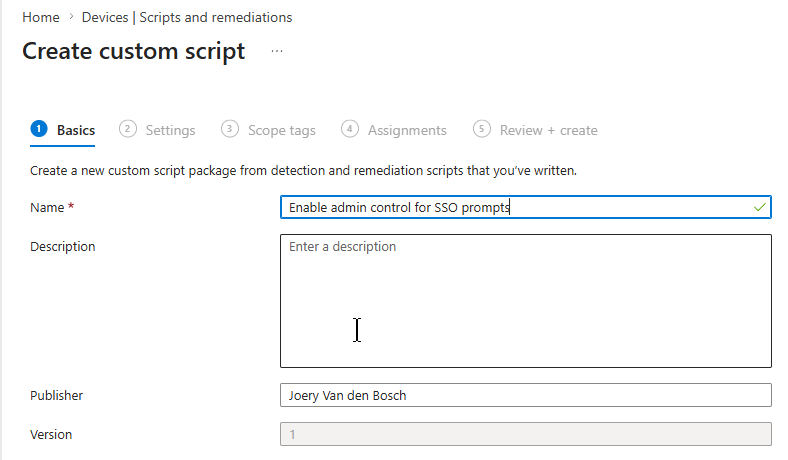
Unpack the zip file you downloaded from above and put these into the remediation script wizard. Use he other settings like in the screenshot.
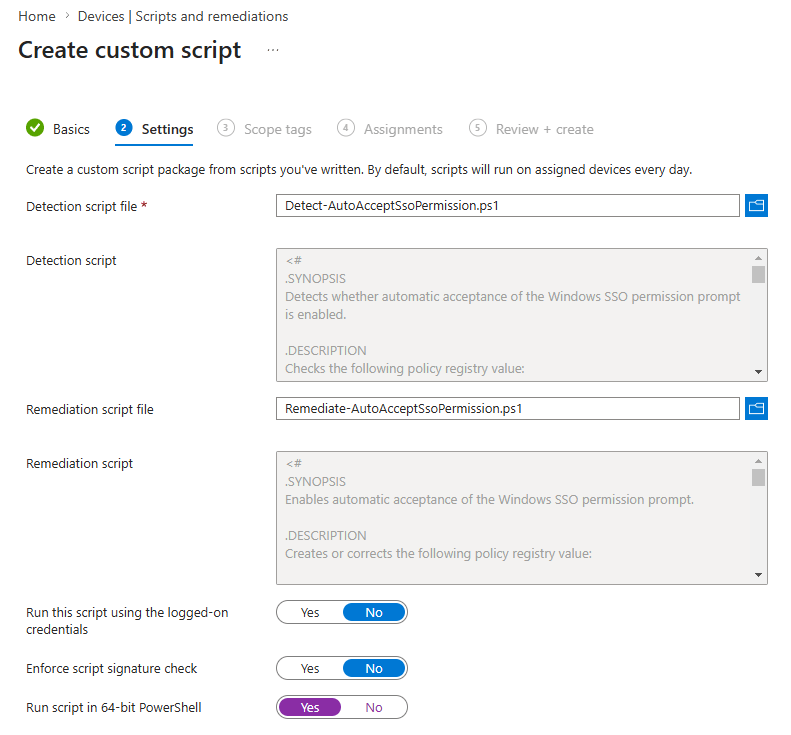
Add your scope tags if you want to, move on to assignments and assing it to a device group
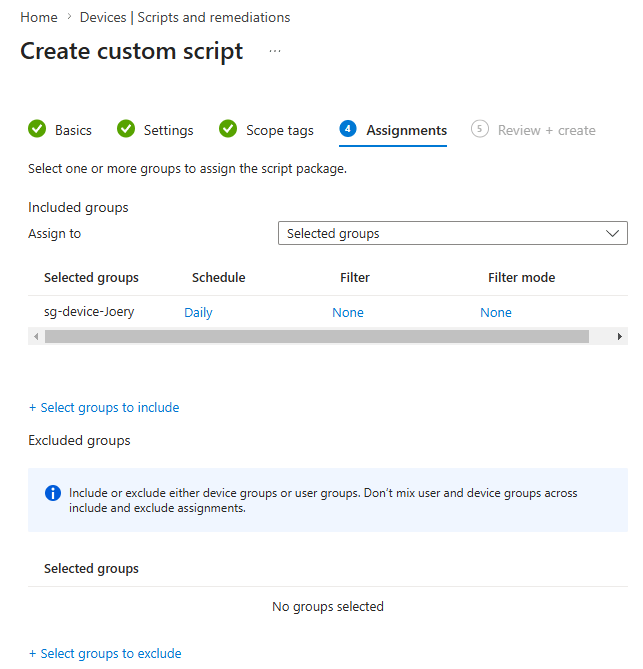
Click next and create. You will end up with this
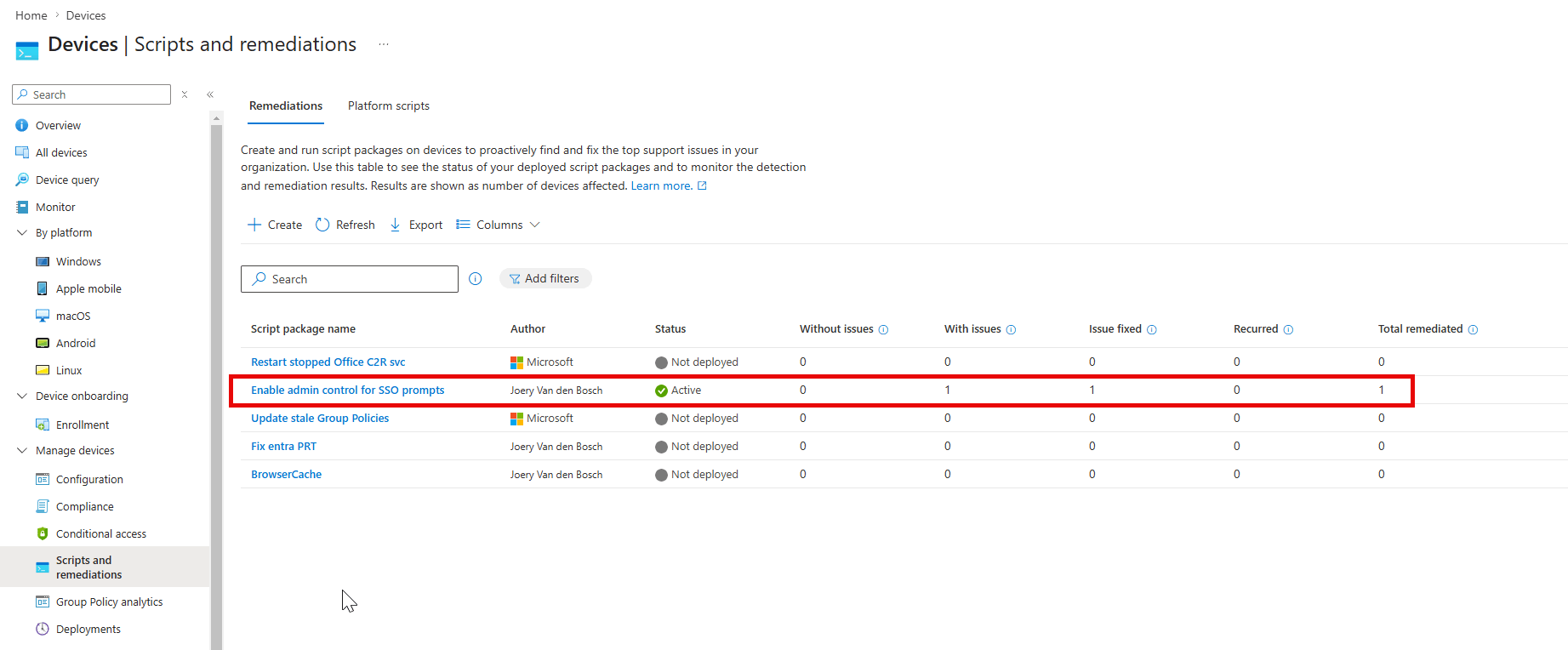
Now to get that remediation script onto a device, navigate to a device that is in the group you assigned it to, on the far right click the 3 dots and choose Ruin remediation (preview)

Now select the newly created script and run remediation
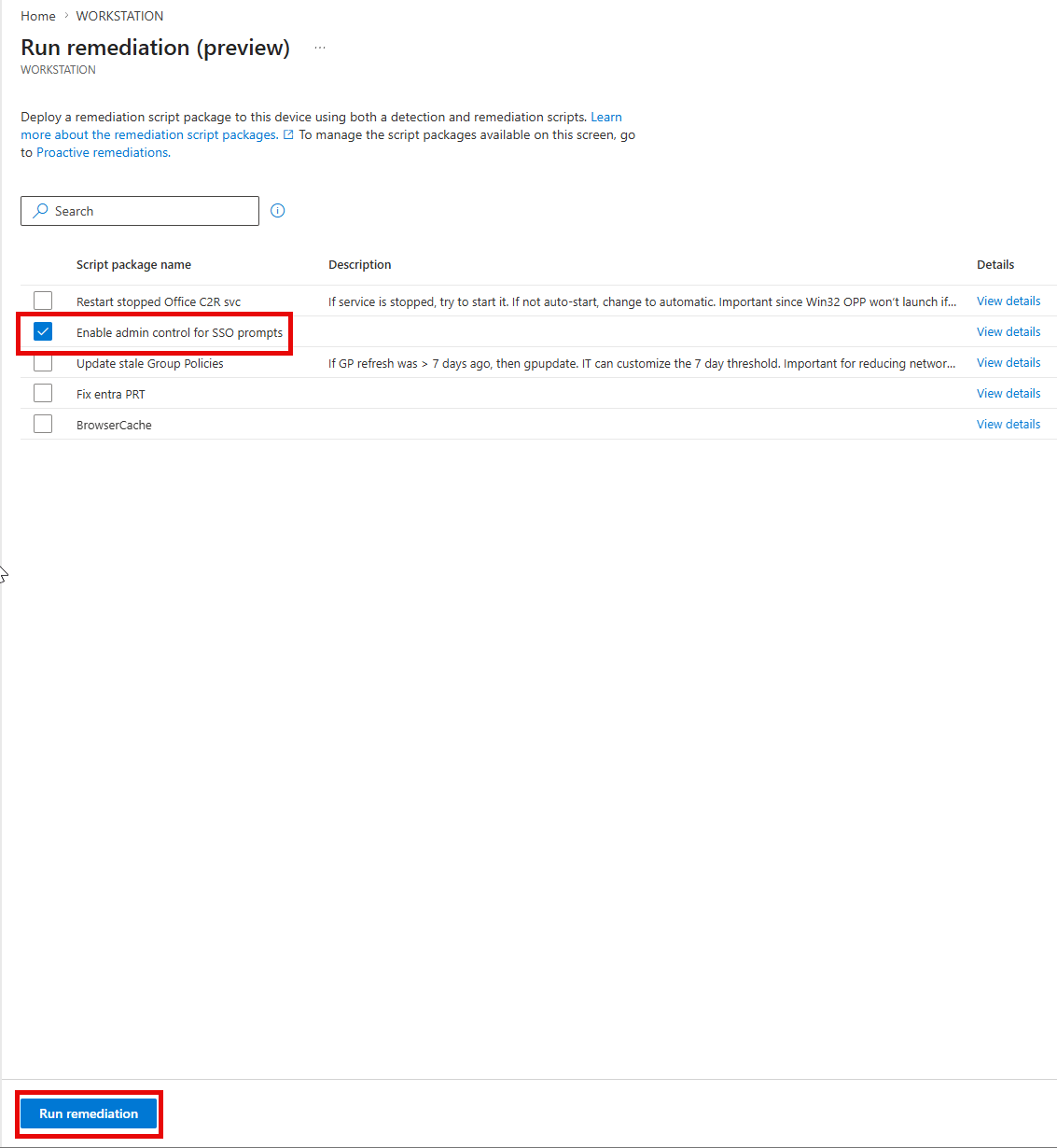
After a few minutes this has run, you can check this by going into the registry on the device
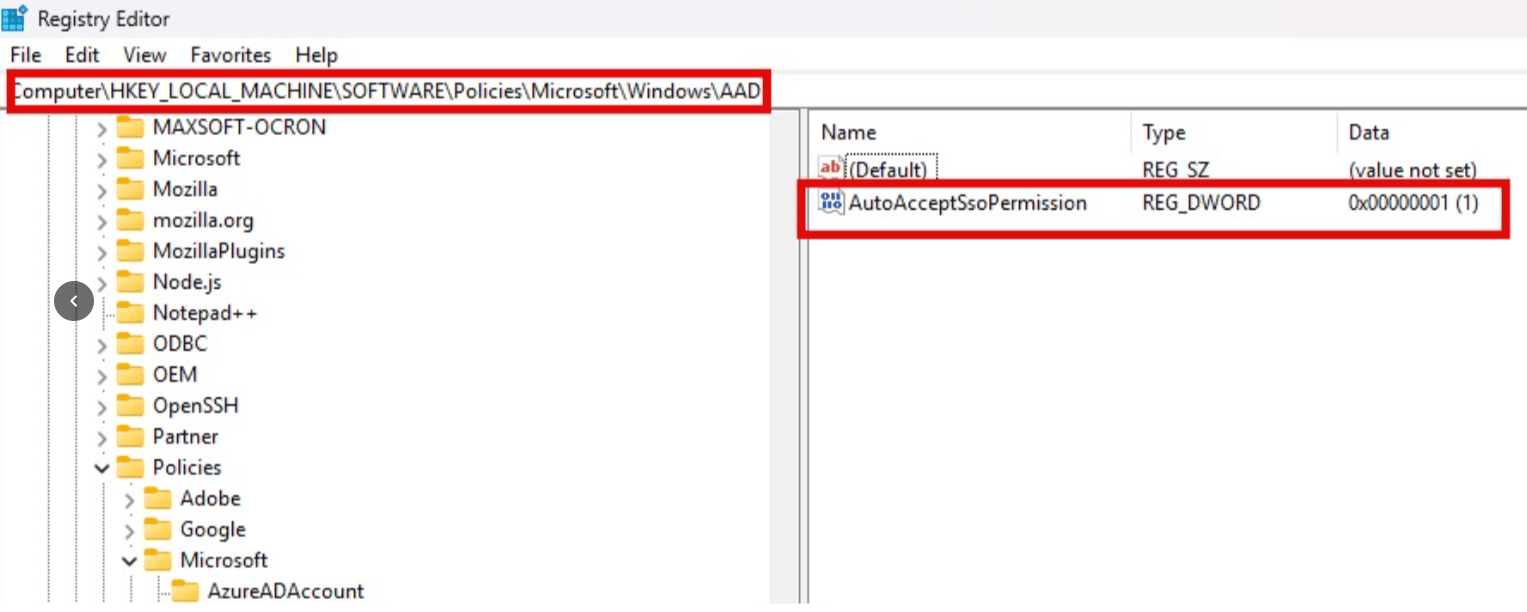
And that’s it, you are done.
The detection script checks whether the registry path exists and whether AutoAcceptSsoPermission is configured as DWORD value 1.
It returns:
- Exit code 0 when compliant
- Exit code 1 when missing or incorrectly configured.
Detection script
.SYNOPSIS Detects whether automatic acceptance of the Windows SSO permission prompt is enabled.

[CmdletBinding()]

param()

$RegistryPath = 'HKLM:\SOFTWARE\Policies\Microsoft\Windows\AAD'

$ValueName = 'AutoAcceptSsoPermission'

$ExpectedValue = 1

try {

if (-not (Test-Path -Path $RegistryPath)) {

Write-Output "Not compliant: Registry path does not exist."

exit 1

}

$CurrentValue = Get-ItemPropertyValue `

-Path $RegistryPath `

-Name $ValueName `

-ErrorAction Stop

if ($CurrentValue -eq $ExpectedValue) {

Write-Output "Compliant: $ValueName is configured as $ExpectedValue."

exit 0

}

Write-Output "Not compliant: $ValueName is configured as $CurrentValue; expected $ExpectedValue."

exit 1

}

catch {

Write-Output "Not compliant: $ValueName is missing or could not be read. $($_.Exception.Message)"

exit 1

}
Remediation script
The remediation script creates the registry path when needed, sets the DWORD value and verifies the result.
.SYNOPSIS

Enables automatic acceptance of the Windows SSO permission prompt.

#>

[CmdletBinding()]

param()

$ErrorActionPreference = 'Stop'

$RegistryPath = 'HKLM:\SOFTWARE\Policies\Microsoft\Windows\AAD'

$ValueName = 'AutoAcceptSsoPermission'

$ValueData = 1

try {

if (-not (Test-Path -Path $RegistryPath)) {

New-Item -Path $RegistryPath -Force | Out-Null

}

New-ItemProperty `

-Path $RegistryPath `

-Name $ValueName `

-PropertyType DWord `

-Value $ValueData `

-Force | Out-Null

$ConfiguredValue = Get-ItemPropertyValue `

-Path $RegistryPath `

-Name $ValueName `

-ErrorAction Stop

if ($ConfiguredValue -eq $ValueData) {

Write-Output "Remediation successful: $ValueName is configured as $ValueData."

exit 0

}

Write-Error "Verification failed. Expected $ValueData but found $ConfiguredValue."

exit 1

}

catch {

Write-Error "Remediation failed: $($_.Exception.Message)"

exit 1

}
How to test it properly
Do not test only by looking at Registry Editor.
Use a pilot device that:
- Is Microsoft Entra joined and Intune managed
- Runs Windows 11 24H2 or 25H2
- Has KB5101650 or a later cumulative update
- Has received the remediation
- Has a test user or profile where the prompt has not already been accepted
Then:
- Confirm the registry value exists.
- Confirm the Windows build using winver or your device inventory.
- Sign in with an Entra ID account.
- Open the applications where users previously encountered the prompt.
- Verify that SSO occurs without the Continue to sign in? dialog.
- Review Entra sign-in logs to ensure that authentication and Conditional Access still operate as expected.
A device on which the user has already accepted the prompt is not a useful test of whether the policy suppresses the first-run experience.
Security and privacy considerations
The policy removes a user-facing permission step, so it should be deployed as an intentional enterprise decision rather than as a cosmetic tweak.
The setting does not:
- grant an application new Microsoft Graph or API permissions
- provide tenant-wide admin consent to enterprise applications
- bypass MFA
- bypass Conditional Access
- sign users into personal Microsoft accounts without prompting
- affect unmanaged devices
It changes whether Windows automatically accepts reuse of the managed user’s Windows sign-in credentials for Microsoft SSO on eligible managed devices.
That distinction should be documented in your security design and communicated to privacy or compliance stakeholders where appropriate.
Why I prefer Remediations over a one-time platform script
A one-time Intune platform script can create the same registry value, but Remediations provide better operational control:
- Recurring detection
- Automatic repair when the value is deleted or changed
- Per-device reporting
- Meaningful detection output
- A clear separation between checking and changing state
This is particularly valuable for a policy that may initially be deployed before all devices meet the OS-update prerequisite.
For organizations without the required Remediations licensing, a platform script or Win32 app remains a practical alternative.
Final thoughts
AutoAcceptSsoPermission is a small registry setting, but it closes a real gap between regulatory user-choice requirements and the operational needs of managed enterprise devices.
The key is not merely to deploy the value. A reliable rollout combines:
- Windows servicing readiness
- Device-based assignment
- Recurring detection and remediation
- Pilot testing across the applications your users actually open
- Clear documentation of the security and privacy impact
That is what turns a registry tweak into a properly governed Intune configuration.
And as always if you feel there is something in error or you want to add some stuff from your own experience, don’t hesitate to contact me!






Such a cool and necessary feature. I just have one question that I can’t seem to find in your post or on Microsoft’s official blog on the topic.
Does “Managed enterprise devices using Microsoft Entra ID accounts” mean it’s only for Enterprise SKUs or will it work on Windows 11 Pro as well?
Should work on pro.
Is there any adverse effect in browsers, etc. where I might be signed in with multiple accounts?
We switched to cloud desktops last year and the biggest benefit was consistent performance regardless of where team members work from. No more worrying about hardware specs or security on personal devices.