The problem? Migrating isn’t a one-click operation. If you’ve built up dozens of Administrative Template policies over the years — complete with group assignments, filters, and scope tags — recreating all of that manually in Settings Catalog is painful and error-prone. To assist with this challenging transition, I built the Administrative Template to Settings Catalog Converter. This tool streamlines the migration process significantly, allowing administrators to focus on other critical tasks while ensuring a smooth transition.
Read the Microsoft article here:

With the increasing shift towards cloud-based management solutions, understanding the importance of migrating to Settings Catalog is paramount. The following sections will delve deeper into the functionalities of the converter, the advantages of migrating, and practical tips for a successful transition.
What is it?
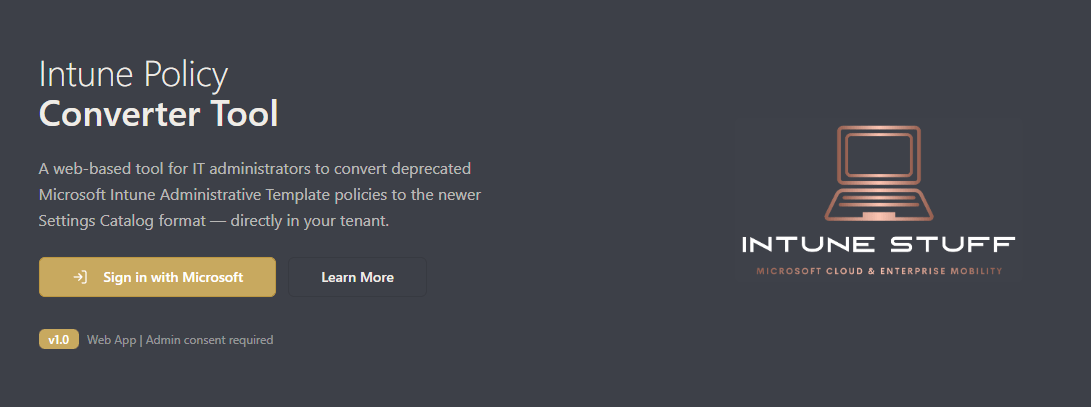
A free web-based tool that converts your deprecated Administrative Template policies in Intune directly to Settings Catalog format. No scripts to run, no PowerShell modules to install.
Try it here: admintemplate.intunestuff.com.
This tool is designed to simplify the migration process, ensuring that you can transition your policies with ease while maintaining the integrity of your settings.
In addition to being user-friendly, the tool offers a host of features that ensure your migration is not only smooth but also efficient. By utilizing intuitive navigation and comprehensive guidance, even those unfamiliar with technical details can successfully migrate their policies.
What does it do?
The tool connects to your tenant and handles the full migration workflow, providing a seamless experience for administrators.
Here’s a more detailed breakdown of the functionalities:
- Converts Administrative Template policies to Settings Catalog — reads your existing policies and creates the equivalent Settings Catalog profiles with the same settings and values.
- Preserves group assignments — your existing group assignments carry over, so you don’t have to reassign everything manually. This feature is essential for maintaining organizational structure and ensuring that all users receive the same policies they had before.
- Preserves filters and scope tags — any assignment filters or scope tags are maintained during conversion.
- Add new assignments, filters, or scope tags — need to update your assignments during migration? The tool lets you add new ones as part of the process.
- Delete old assignments and policies — once you’ve verified the new policy works, you can clean up the old Administrative Template policy and its assignments, making your management environment cleaner and more efficient.

What does it NOT do?
Unfortunately, Microsoft doesn’t publish an official comparison table or mapping file between Administrative Template settings and their Settings Catalog equivalents. The Settings Catalog was built as a new framework, and while many settings overlap, Microsoft never released a formal “old setting X = new setting Y” reference.
That said, there are a few things worth knowing:
- Microsoft’s own Intune portal uses a similar approach when it suggests migrating settings – it also does fuzzy matching based on names and metadata.
- Some community-driven efforts have attempted to create partial mapping tables, but they tend to go out of date quickly as Microsoft keeps adding new Settings Catalog definitions.
The ADMX ingestion metadata (the underlying XML template data) does contain some identifiers that could theoretically be cross-referenced, but Microsoft doesn’t expose a direct link between the old definition IDs and new Settings Catalog definition IDs through their API.
So the string comparison approach, combined with the fallback searches by category and ADMX file name, is essentially the best available method without maintaining a hand-curated mapping table. The confidence levels (high/medium/low) help flag when a match might be less reliable so you can double-check those manually.
When the tool detects that there are unmatching settings you will get something like this:

There will be also a pop-up in the bottom right corner like this:

Why should you migrate?
- Microsoft has deprecated Administrative Templates — they will eventually be removed. Staying on deprecated policy types means you could lose support or functionality in future Intune updates.
- Settings Catalog is more comprehensive — it covers far more settings than Admin Templates ever did, and Microsoft keeps adding new ones regularly.
- Improved reporting and conflict detection — Settings Catalog provides better per-setting reporting and clearer conflict resolution.
- Future-proofing — new configurations should already be in Settings Catalog. Migrating existing policies brings everything under one consistent approach, which is essential for maintaining compliance and efficiency.
Transitioning from Administrative Templates to Settings Catalog is not just a matter of urgency; it’s also an opportunity to enhance your device management strategy. Embracing Settings Catalog allows for a broader scope of settings that can be configured, which means better customization and control over your organization’s devices.
How to get started?
- Navigate to admintemplate.intunestuff.com
- Ensure that you are familiar with your current Administrative Template policies to make informed decisions during the migration.
- Authenticate with your tenant credentials
- The tool loads your existing Administrative Template policies
- Select the policies you want to convert
- Review and optionally adjust assignments, filters, and scope tags
- Convert to Settings Catalog
- Verify the new policies work as expected
- Clean up the old policies when ready
After migrating the Administrative Templates, it’s crucial to conduct thorough testing. This step ensures that the new policies function as intended and provides confidence in the new setup.

Tips for a smooth migration
- Test in a pilot group first — assign the new Settings Catalog policy to a small test group before rolling out broadly.
- Don’t delete the old policy immediately — keep it in place until you’ve confirmed the Settings Catalog version works. The tool lets you delete it when you’re ready.
- Review your assignments — migration is a great opportunity to clean up stale group assignments or outdated filters.
- Document what you migrate — especially if you have a large number of policies, tracking helps avoid confusion and duplicates.

Wrapping up
The deprecation of Administrative Templates doesn’t have to be a headache. This tool takes the manual work out of the migration so you can focus on what matters — making sure your policies are correct and your devices are properly managed.
Give it a try at admintemplate.intunestuff.com and let me know what you think!