
Hi Community,
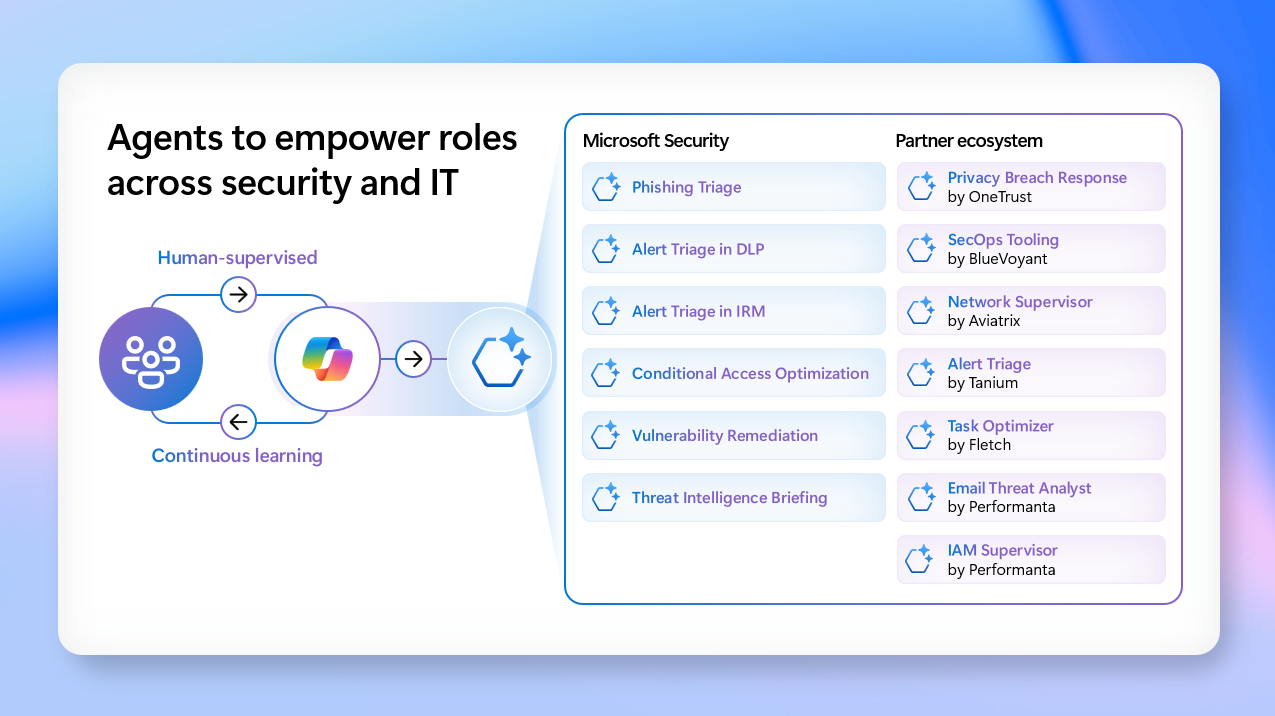
To build further on the previous posts regarding Security Copilot, which you can find below i would like to introduce Security Copilot Agent and specifically the Intune Vulnerability Remediation Agent.
Let’s check out how to enable it and what it can do for you.
Security Copilot Agent Intune Vulnerability Remediation Agent (Preview)
Security Copilot Agent License Prerequisites
- Microsoft Intune Plan 1 subscription – This provides the core Intune capabilities.
- Microsoft Intune Suite – Intune Plan 2 and standalone add-ons are not sufficient for this prerequisite.
- Microsoft Security Copilot – Security Copilot must share a Tenant with Intune, and to set up the agent your account must have permission to the workspace for Security Copilot.
- Microsoft Defender Vulnerability Management- Microsoft Defender for Endpoint P2 OR Defender Vulnerability Management Standalone
Security Copilot Agent Some Caveats
- An admin must start the agent. When the agent is running there is no option to pause or stop it.
- The agent will run persistenly in the identity of the user that did the setup.
- The agent can only be launched from the Intune portal.
- The CVE’s are only for devices with Windows 10 & 11 NO server OS.
- The exposed device list only includes devices found in Entra ID, NO server OS.
- No scope tags are support yet for the exposed devices list in this public preview.
- Automatic remeditation is not available in the public preview, so no actions in regards to creating policies straight from the agent. This will come!
- No macOS support yet, this will also come.
Security Copilot Agent Role-based Permissions
To set up, run, and view results from the Vulnerability Remediation Agent, you must use an account that is assigned the following role-based access control (RBAC) permissions:
Intune
- Device Management Apps (Read)
- Used to identify/list managed apps in Intune
- Device Management Configurations (Read) – Link
- Used to list policies and windows update catalog in Intune
Microsoft Defender for Endpoint:
- Security Recommendations (Read)
- Used to list recommendations for apps and OS
- Threat Hunting (Read)
- Used to run hunting queries in Apps and OS
Security Copilot:
- Copilot Owner
- Required to create (set up) or delete (remove) an agent instance.
- Copilot Contributor
- Required to run the agent and view results.
Enable the Security Copilot Agent Vulnerability Remediation Agent
When you go to https://securitycopilot.microsoft.com/ you will see the banner that the Security Copilot Agents are here. You cannot miss it ;-).
You can also check if the agents are enabled by clicking the sources icon and check if the box Agents is enabled:

Now click Go to agents in the banner

You will be presented by a welcome screen, click next for more info of dismiss.


Now click View details on the Intune Vulnerability Remediation Agent and review the triggers, permissions, Identity, Plugins and RBAC and click Set up in Intune.

You will be redirected to the Intune portal, it can take some time to load. Under Endpoint Security you will see a new section Vulnerability Remediation Agent (Preview).

Now your setup is complete. Let’s walk you throught the settings and more.
Settings of the Security Copilot Agent Vulnerability Remediation Agent
Let’s skip the overview pane for now and head into the settings first. When you click on the settings you can see some information on the agent:
- Permissions
- Identity
- Plugins
- Role with access
- Workspace

Overview of the Security Copilot Agent Vulnerability Remediation Agent
On the overview page you can see the following:
- Agent availability
- About this agent
- Agent suggestions – the most important one
- Agent run activity

On the top you will have 3 other buttons, Run, Refresh and Remove agent.


Run the Security Copilot Agent Vulnerability Remediation Agent (Preview)
Click the run button to get results in the Agent suggestions. For myself and some other early adopters we had to do several run commands to get some results, so be patient. When your run in finished you can track it in the Activity pane.

The suggestion matches the vulnerability recommendations from the Microsoft Defender Security portal. As you can see in this example for Adobe Acrobat DC.

Now let’s check out the suggestions. If you click on one, e.g. the Update Adobe Acrobat DC. A new pane will open with information on the CVE. Also this pane will guide you to what actions you should take to resolve this.

You can download your exposed devices for further troubleshooting, i would have been nice to see an overview of the affected devices here in this pane. Maybe when it’s GA.
Once you manually remediate the issue you can click Mark as applied, This means that you confirm you are self attesting and that you completed the remediation steps. The agent will NOT perform any actions to your devices or on your environment. Once the mark as applied there will be a timestamp that dates the time the suggestion was last maked as applied.

You will also see this reflecting in the Agent suggestions page, it will show in the Last applied column.


Error messages
As with all new products or features you can run into some error messages, here are the most frequent ones:
- Insufficient licenses: Review the prerequisites on licensing
- Insufficient Workpspace access: This error indicates that your account does not have the correct permissions to view or use the Security Copilot Workspace.
- Insufficient Permissions: Review the RBAC prerequisites.
- There was an issue with setting up the vulnerability Agent, please try again, try to log of and on again, this should do the trick.
- The agent encoutered an error and did not finish the run, try running again, try to log of and on again, this should do the trick.
No error message but if you don’t see suggestions please try several runs, in my case i had to do 4 or 5 to get the suggestions in here.
So this concludes the Introduction of the Security Copilot Vulnerability Remediation Agent (Preview). Please do play around with it and give your feedback. Microsoft is eager to get to know your findings good or bad so please do comment or contact me directly.
And as always if you feel there is something in error or you want to add some stuff from your own experience don’t hesitate to contact me!







0 Comments