
Hi Community,
This time some stuff on Security Copilot. I thought it was about time to write up something on Security Copilot. World domination is not about to happen i guess but you never know.
In this blog i hope to show you how powerfull the product is already, still in preview, and how it can help you save time and yes also costs.
Join me for part 1 of this blog series.
How to setup Security Copilot with the Intune plugin.
The setup of security copilot is super easy.
In the intune portal if you go to tenant administration you will see in the left column the copilot (preview) if you click on this you can see that copilot hasn’t been setup yet. Now if you click on the copilot for security link you will be redirected to the setup page,
Here you have to choose your Azure subscription – ignore the red lines that will appear, this is from a test tenant but the setup will be the same on your end
Choose your resource group or select one you have created earlier
Enter a capacity name
Choose your prompt evaluation location, in this case Europe and thick the box if this location has too much traffic, allow copilot to evaluate prompts anywhere in the world. If your selected geo location is too busy, you can also evaluate the prompts anywhere in the world
Select your capacity region, in this case Europe West . Your Data is always stored in your home tenant geo.
Select the amount of SCU (Secure Compute Units) that you want to use, the units will do al the work in the backend, Microsoft recommends to use 3 units. For this demo there is just 1 SCU in place. This can be changed in the settings
The number of SCUs is provisioned on an hourly basis, and the estimated monthly cost is displayed.
Confirm that you acknowledge and agree to the terms and conditions, then select Continue.
After you’ve created the capacity, it will take a few minutes to deploy the Azure resource on the backend. Check out the video of the setup.
Now that copilot for security has been setup you need to add copilot for intune, this is a plugin you can do this by clicking the sources button next the How can Copilot for security help
Make sure you enable Microsoft Intune.
If you scroll thru the different options you can see that there are a lot of additional plugins available, from Microsoft but also from 3th party solution providers, at the bottom you can also add your own custom plugins. Check out the video below.
Let’s talk SCU’s
Security Compute Unit (SCU)
A Security Compute Unit (SCU) is a unit measure of the compute power to run Security Copilot workloads within the standalone and embedded experiences. The usage monitoring dashboard gives you a clear view of different data dimensions, making it easy to track security compute unit usage in Security Copilot. You can see how many units are used, which plugins are employed during sessions, and who initiated those sessions. Plus, you can apply filters and export usage data effortlessly. The dashboard covers up to 90 days of data, giving you a solid look at recent activity. Security Copilot is sold in a provisioned capacity model and billed by the hour. You can add or remove Security Compute Units (SCUs) whenever you want. Billing is done in hourly blocks, not by the minute, with a minimum of one hour. Any usage within the same hour is billed as a full SCU, no matter when you start or stop. For example, if you add an SCU at 9:05 am, remove it at 9:35 am, and then add another SCU at 9:45 am, you’ll be charged for two units within the 9:00 am to 10:00 am hour. Similarly, if you add an SCU at 9:45 am, you’ll only have 15 minutes to use it before it’s no longer available, since SCUs are provided in hourly blocks from 9:00 am to 10:00 am. To get the most out of your usage, make SCU changes at the start of the hour.
Check out the Microsoft Security Copilot princing article here.

Microsoft has made very good improvements to the overview of cost calculation of the use of the SCU’s as you can see now exactly how many units have been used with every prompt.

If your SCU runs out of capacity you will get this message.

You can boost your SCU’s from the Security Copilot webpage.

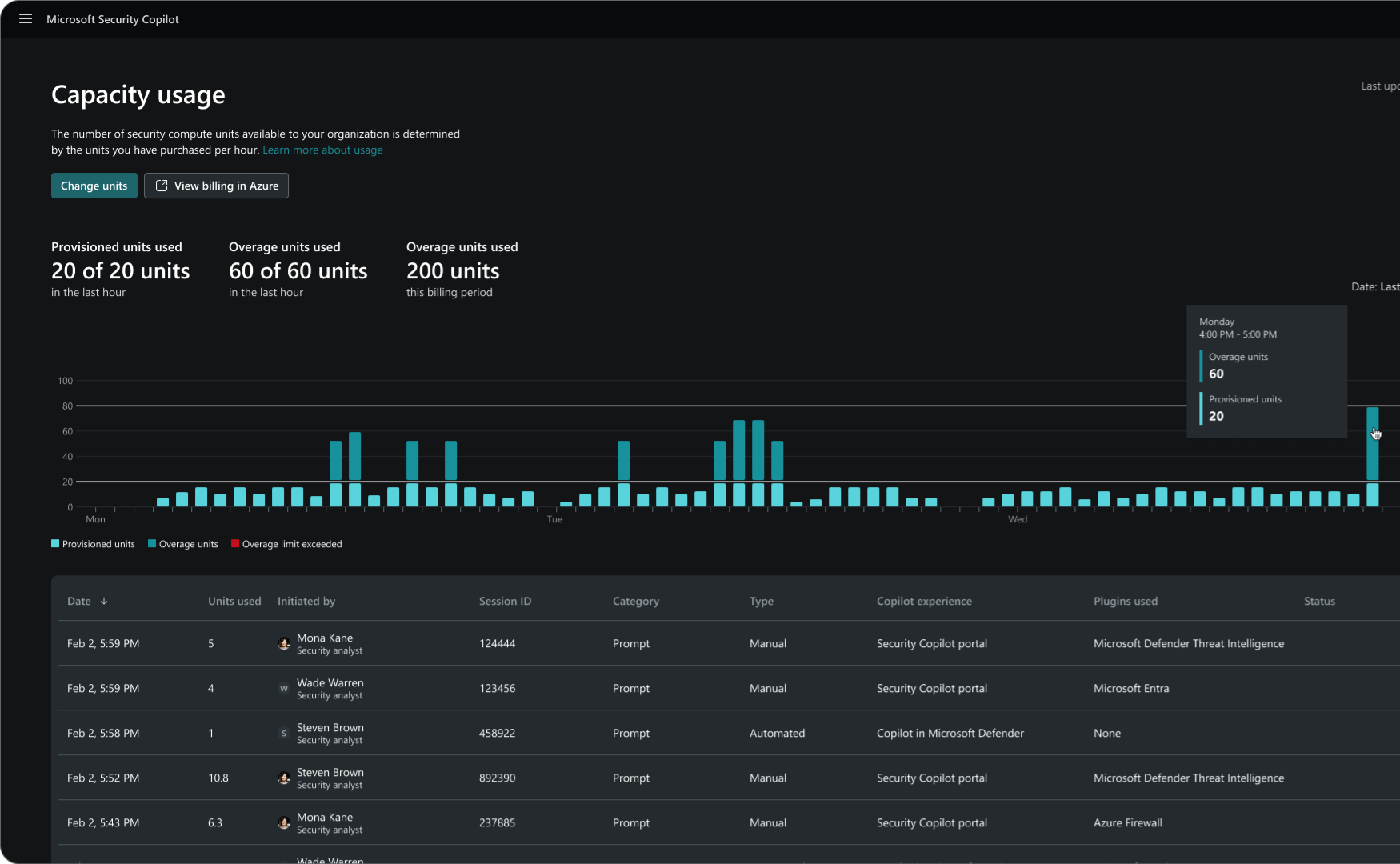

The big difference is that Security Copilot provisioned capacity is billed by the hour while the overage capacity is billed on usage.
You can flexibly provision Security Compute Units (SCUs) to accommodate regular workloads and adjust them anytime without long-term commitments.
To manage unexpected demand spikes, you can allocate an overage amount to ensure that additional SCUs are available when initially provisioned units are depleted during unexpected workload spikes. Overage units are billed on-demand and can be set as unlimited or a maximum amount. This approach enables predictable billing while providing the flexibility to handle both regular and unexpected usage.
Billing is calculated on hourly blocks based on provisioned capacity rather than by 60-minute increments and has a minimum of one hour. Any usage consumed within the same hour is billed as a full SCU for provisioned capacity, regardless of start or end times within that hour. For overage units, SCUs are billed up to one decimal increments for the consumed units.
For instance, if you provision an SCU at 9:05 a.m., then deprovision it at 9:35 am, and then provision another SCU at 9:45 am, you’ll be charged for two units within the 9:00 a.m. to 10:00 a.m. hour. To maximize usage, make SCU provisioning changes at the beginning of the hour.
Cost saving tips
Once you create the capacity, the cost will apply for at least one hour. Once you delete the capacity, you will lose access to it. It will not be available through the hour you actually paid for!
You will be billed for one hour if you apply for a capacity at 12:00. If you delete the capacity at 12:20, you will lose the capacity at 12:20 even though you paid for the 12:00 to 13:00 timespan.
If you just use your Security Copilot for the amount of time you need it and you delete your SCU’s it is not that expensive to use.

You can also ask random questions like who is Albert Einstein however this is not where Security Copilot is used. So switch these 2 settings off.

Morten Kundsen has released a cost calculator for scalable capacity deployment for running the Security Copilot service for a non-24×7 scenario. This might be helpful if you need to plan costs for running this service on a larger scale than ad hoc.
If that is your case, you might also be interested in Aaron Hoffmann and his automated approach to creating and deleting Security Copilot capacities using Logic Apps. Combining automation with Azure Budget thresholds in cost management could allow the necessary budget control to run Microsoft Copilot for Security on a budget!
Jan Vidar Elven has also released his take on Automatic Provisioning and Deprovisioning of Copilot for Security Capacity Unit. His approach is to automate creating an SCU on weekday mornings and destroy it again in the afternoon.
Check out their blog sites here:
Morten Knudsen MVP – https://mortenknudsen.net/?p=3026
Aaron Hoffmann – https://medium.com/@aaron.hoffmann/scheduling-microsoft-copilot-for-security-capacities-20f4b26f1999
Jan Vidar Elven MVP – https://gotoguy.blog/2024/04/05/automatic-provisioning-and-deprovisioning-of-copilot-for-security-capacity-unit/
This concludes part 1 of this series. In part 2 i will talk more about the possibilities, promting and much more. Subscribe to get an instant message when the next part(s) go live!
And as always if you feel there is something in error or you want to add some stuff from your own experience don’t hesitate to contact me!







0 Comments