
Hi all,
Microsoft did some great work on managing MacOS devices with Intune lately. You can almost compare it with the Windows configuration. Some things are still missing but hey, we didn’t get all the Windows features overnight. Rome also wasn’t build in a day 🙂 Intune is not a static product and is constantly in development no matter what OS you are enrolling.
This is why i decided to write a MacOS Intune Policies – A Good Guide to Start From.
I hope this guide will makes you feel more comfortable in enrolling your MacOS devices in Intune. Regarding the Microsoft Defender enrollment and some other nice features i have already written 2 guides, you can find them below. This guide will contain only some information regarding policies, scripts and custom attributes.
- Part 1 of the guide
- Part 2 of the guideManage MacOS with Intune, including Apple Business Manager, Defender Enrollment, Platform SSO, and much more – The Complete Guide Part 2Hi, As promised, in my previous post Manage MacOS with Intune, including Apple Business Manager, Defender Enrollment, Platform SSO, and much more – The Complete Guide Part 1 here is part 2. In this part i will show you some tips and tricks to look out for. I will be showing you some things about Declarative Device Management, Rapid Security Response, App Deployment and some tools i use to make life easier to manage MacOS. Let’s start with Declarative Device Management. Declarative Device Management (DDM) What is Declarative Device Management (DDM)? This is what apple says about DDM: […]
The information in this guide is coming from the Microsoft Github page and from my own experiences. All downloads are available on this guide. The profiles in this guide also contain requirements for implementing CIS (Center for Internet Security) and NIST (National Institute of Standards and Technology)
Let’s Dive in.
MacOS Intune Policies – An Easy Guide to Start From
Custom Configuration Profiles
In this section i will describe the different Custom Configuration Profiles i have configured. At the end of the policy list I will show you how to create the policies with the mobileconfig files. You can open and edit the mobileconfig files with VSCode, you can download this here. This list is not complete or carved in stone, you can cherry pick what you want. I will be adding some more MacOS Intune Policies as i go.
Disable External Storage
Now name you profile e.g. Timezone-West Europe Standard Time and add a description if you want. Click next
Payloads in this profile are documented in the Apple Configuration Profile Reference
- com.apple.systemuiserver
- com.apple.NetworkBrowser
- com.apple.finder
Disable Media Sharing
This Custom Profile is required when implementing following CIS or NIST Recommendations for macOS:
- CIS: Ensure Media Sharing Is Disabled (Automated)
- NIST: Disable Media Sharing
Configuration settings for Intune
- Custom configuration profile name: System Settings – Disable Media Sharing
- Deployment channel: Device Channel
- Configuration profile name: Disable Media Sharing.mobileconfig
Disable “Show Password Hints”
This Custom Profile is required when implementing following CIS or NIST Recommendations for macOS:
- CIS: Ensure Show Password Hints Is Disabled (Automated)
- NIST: Disable Media Sharing
Configuration settings for Intune
- Custom configuration profile name: Lock Screen – Disable “Show Password Hints
- Deployment channel: Device Channel
- Configuration profile name: Disable Show Password Hints.mobileconfig
Managed Favorites for Microsoft Edge
On corporate environments, you might came across situation that you need to deploy managed favorites to different user groups or countries. Therefore, you should not deploy managed bookmarks using your basline policy that will be deployed to all users, instead you should deploy managed favorites to different user groups or countries using custom profile.
This custom profile has been created as an example how to deploy managed bookmarks of Microsoft Edge to specific user group or country.
MacOS Intune Policies
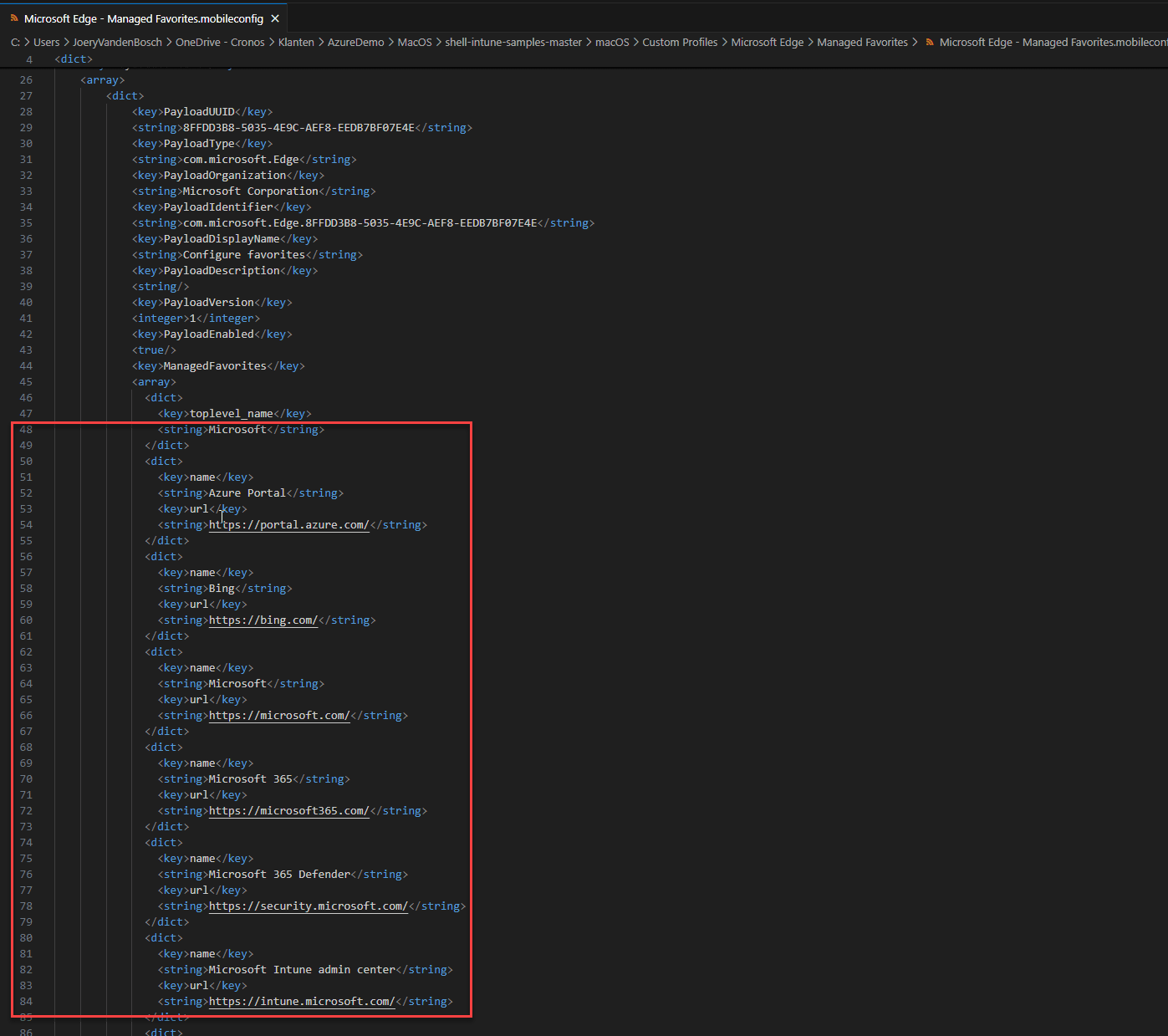
- From line 48, replace “Microsoft” from your corporate name e.g. “Contoso”.
- Starting from line 50, gather your managed favorites following documented instructions.
- From Intune, deploy custom profile to specific security group that contains members of specific user group or users from specific country.

In this screenshot you can see from where you can start editing this mobileconfig file.
Microsoft OneDrive (Standarlone) – Full Disk Access
This Custom Profile is created to provide Microsoft OneDrive (Standarlone) Full Disk Access that is required for Known Folder Move (KFM)-feature.
The standalone OneDrive sync app (not from the Mac App Store) is required for Folder Backup. This app requires Full Disk Access, which can be granted and deployed by IT admins. For more information, see Configure device restriction settings in Microsoft Intune.
I recommend that you upgrade to the latest available build before you deploy.
Enable notifications for some key Microsoft apps
This profile grants the following:
- Show in Lock Screen = True
- Badges Enabled = True
- Sounds Enabled = True
- Critical Alert Enabled = True
- Show In Notification Centre = True
To the following bundleID’s:
- com.microsoft.CompanyPortal (Intune Company Portal)
- com.microsoft.wdav (Microsoft Defednder)
- com.microsoft.intuneMDMAgent (Intune Script Agent)
- com.microsoft.intuneMDMAgent.daemon (Intune Script Agent)
- com.microsoft.Outlook (Microsoft Outlook)
- com.microsoft.skype.teams (Microsoft Teams)
- com.microsoft.CompanyPortalMac (Intune Company Portal)
- com.microsoft.autoupdate2 (Microsoft Auto Update)
- com.microsoft.edgemac (Microsoft Edge)
- com.microsoft.OneDrive (Microsoft OneDrive)
- com.microsoft.Word (Microsoft Word)
- com.microsoft.Excel (Microsoft Excel)
- com.microsoft.Powerpoint (Microsoft Powerpoint)
- com.microsoft.onenote.mac (Microsoft OneNote)
- com.microsoft.OneDrive (Microsoft OneDrive)
- com.microsoft.rdc.macos (Microsoft Remote Desktop)
- com.microsoft.VSCode (Microsoft Visual Studio Code)
Show Wi-Fi Status Permanently in Menu Bar
This Custom Profile is required when implementing following CIS or NIST Recommendations for macOS:
- CIS: Ensure Show Wi-Fi status in Menu Bar Is Enabled (Automated)
- NIST: N/A
Configuration settings for Intune
- Custom configuration profile name: Menu Bar – Show Wi-Fi Status
- Deployment channel: Device Channel
- Configuration profile name: Wi-Fi status.mobileconfig
Provide controls over com.apple.SoftwareUpdate
Latest on com.apple.SoftwareUpdate can be found in the Apple Documentation.

To understand how to use this profile with Intune, see the following doc page on Add a property list file to macOS devices using Microsoft Intune.
This profile grants the following
AutomaticCheckEnabled

True

AutomaticDownload

True

AutomaticallyInstallMacOSUpdates

True

ConfigDataInstall

True

CriticalUpdateInstall

True
Profiles for Terminal
This folder contains custom profiles for Terminal that are needed e.g. when implementing best practices of macOS-policies for CIS Benchmarks

by CIS (Center for Internet Security) or NIST (National Institute of Standards and Technology).
Full Disk Access – Terminal – Full Disk Access.mobileconfig:
This Custom Profile is required when implementing following CIS or NIST Recommendations for macOS:
- CIS: Ensure Remote Login Is Disabled (Automated)
- CIS: Ensure Remote Apple Events Is Disabled (Automated)
- NIST: Disable SSH Server for Remote Access Sessions
- NIST: Disable Remote Apple Events
Baseline – Terminal.mobileconfig:
This Custom Profile is required when implementing following CIS or NIST Recommendations for macOS:
- CIS: Ensure Secure Keyboard Entry Terminal.app Is Enabled (Automated)
- NIST: Ensure Secure Keyboard Entry Terminal.app Is Enabled
MacOS Intune Policies
How to Create a Custom Profile in Intune with a mobileconfig file
Go to The intune portal – Devices – MacOS – Configuration – Create – New Policy – Platform: MacOS – Profile Type: Templates – Template Name: Custom – Create
Now name you profile e.g. MacOS – Terminal Settings and add a description if you want. Click next

Fill in the Custom configuration profile name e.g. MacOS – Terminal Settings and choose a Deployment channel and browse to your mobileconfig file location.

After you have selected your mobileconfig file your policy will look like this

Now click next and assign the policy to your desired group, click next and create.
Follow these steps to create your device configuration profiles.
Now let’s go to the next section
Configuration Profiles
In this section i will describe the different Device Configuration Profiles i have configured. This list is not complete or carved in stone, you can cherry pick what you want. I will be adding some more MacOS Intune Policies as i go.
Timezone-West Europe Standard Time
This policy Configures the time server settings to use the time zone “Europe/Brussels” for devices, ensuring accurate local time synchronization. You can alter this to your own time zone.
The time zone path location string in /usr/share/zoneinfo/; for example, America/Denver or Zulu.
Log File
Troubleshoot macOS shell script policies using log collection

Click Add settings and search for Time zone, select Time zone and fill in Europe/Brussels for Brussels time zone and click next, assign scope tags if you want and click next, assign this profile to your desired group and click create.

Configure Microsoft OneDrive
Automatically and silently enables Folder Backup (Known Folder Move) for Desktop and Documents. Blocks external sync, disables personal accounts and tutorial, and forces folder backup. Enables Files On-Demand, simultaneous edits in Office apps, and opens OneDrive at login. Displays a notification to users once folders are redirected.
Go to The intune portal – Devices – MacOS – Configuration – Create – New Policy – Platform: MacOS – Profile Type: Settings Catalog – Create
Now name you profile e.g. MacOS – Microsoft OneDrive and add a description if you want. Click next
Click Add settings and search for Microsoft OneDrive, select Microsoft OneDrive. Select the settings you want to configure. The settings i have configured are:
- Include ~/Documents in Folder Backup (Known Folder Move)
- Include ~/Desktop in Folder Backup (Known Folder Move)
- Block external sync: Prevents the sync app from syncing libraries and folders shared from other organizations.
- Open at login: Specifies whether OneDrive starts automatically when the user logs in.
- Enable Files On-Demand: Specifies whether Files On-Demand is enabled. When set to true, new users who set up the sync app will download online-only files by default. When set to false, Files On-Demand will be disabled and users won’t be able to turn it on. NOTE: This setting only applies to macOS Monterey 12.1 and earlier.
- Disable download toasts: Prevents toasts from appearing when applications cause file contents to be downloaded.
- Enable simultaneous edits for Office apps: This setting lets multiple users use the Microsoft 365 Apps for enterprise, Office 2019, or Office 2016 desktop apps to simultaneously edit an Office file stored in OneDrive. It also lets users share files from the Office desktop apps.
- Display a notification to users once their folders have been redirected
- Disable tutorial: This setting prevents the tutorial from being shown to users after they set up OneDrive.
- Disable personal accounts: Blocks users from signing in and syncing files in personal OneDrive accounts. If this key is set after a user has set up sync with a personal account, the user will be signed out.
- Automatically and silently enable the Folder Backup feature (Known Folder Move): Use this setting to redirect and move your users Documents and/or Desktop folders to OneDrive without any user interaction. Enter your Microsoft 365 tenant ID to enable this feature.

Choose the settings that you want and set them to true or false according to your needs.
Click next, assign scope tags if you want and click next, assign this profile to your desired group and click create.
The Built-in Device Restriction Policy
This is a general built-in policy in Intune, you can have a lot of settings configured in here but here is an example of my policy. To create a Device Configuration policy Go to The intune portal – Devices – MacOS – Configuration – Create – New Policy – Platform: MacOS – Profile Type: Templates – Template name: Device Restrictions – Create
Now name you profile e.g. MacOS – Device Restrictions and add a description if you want.
Example:

You can pick different settings from the provided list so configure this per your own needs.

The overview of all the settings can be found in the Microsoft documentation
The Built-in Device Features Policy
This is a general built-in policy in Intune, you can have a lot of settings configured in here but here is an example of my policy. To create a Device Features policy Go to The intune portal – Devices – MacOS – Configuration – Create – New Policy – Platform: MacOS – Profile Type: Templates – Template name: Device Features – Create
Now name you profile e.g. MacOS – Device Features and add a description if you want.
Example:

You can pick different settings from the provided list so configure this per your own needs.

The overview of all these settings can be found in the Microsoft documentation.
MacOS Scripts
In this section i will describe the different scripts i have in place in Intune to manage my MacOS devices. All the config settings needed for the scripts is described per script. Also here, just pick what you want or just take’em all. 😉
At the end of the list of scripts i will show you how to configure a script in Intune.
Access to Audit Records is Controlled
This Custom Script is required when implementing following CIS or NIST Recommendations for macOS:
- CIS: Ensure Access to Audit Records Is Controlled (Automated)
- NIST:
- Configure Audit Log Folders to be Owned by Root
- Configure Audit Log Folders Group to Wheel
- Configure Audit Log Folders to Mode 700 or Less Permissive
Script Settings:
- Run script as signed-in user : Yes
- Hide script notifications on devices : Yes
- Script frequency : Not configured
- Number of times to retry if script fails : 3
Log File:
The log file will output to /Library/Logs/Microsoft/IntuneScripts/ControlledAuditRecords.log by default. Exit status is either 0 or 1. To gather this log with Intune remotely take a look at Troubleshoot macOS shell script policies using log collection.
Delete Guest Home Folder
This Custom Script is required when implementing following CIS or NIST Recommendations for macOS:
- CIS: Ensure the Guest Home Folder Does Not Exist (Automated)
- NIST: N/A
Script Settings:
- Run script as signed-in user : No
- Hide script notifications on devices : Yes
- Script frequency : Not configured (Note: If users have and uses admin rights on their day-to-day tasks, you should consider to run this more frequently such as “Every 1 day”)
- Number of times to retry if script fails : 3
Log File:
The log file will output to /Library/Logs/Microsoft/IntuneScripts/DeleteGuestHomeFolder.log by default. Exit status is either 0 or 1. To gather this log with Intune remotely take a look at Troubleshoot macOS shell script policies using log collection.
Rename Mac devices
In this folder, we have gathered two different options to rename Intune-managed Mac-devices as an example.
Option Number 1: Script to rename a Mac device based on model type and serial number (DeviceRename.sh)
This script renames a Mac device by looking at the model type and at the serial number This is ideal for devices that are enrolled without user affinity. The script can be further customized to include the user name as part of the device rename.
The script consists of five steps:
- Determine the model type and, based on the retrieved type, set a 4 characters variable $ModelCode e.g. MacBook Air ==> $ModelCode = MABA
- Collect the serial number and keep the first 10 characters e.g. Serial Number = C02BA222DC79 ==> $SerialNum = C02BA222DC
- Check MDM enrollment type and set $OwnerPrefix variable e.g. enrolled via Apple Business Manager ==> $OwnerPrefix = CO, otherwise ==> $OwnerPrefix = BYO
- Fetch country code, based on current IP address, set variable $Country e.g. 209.142.68.29 ==> $Country = US
- Build the final name by combining $ModelCode and $serial e.g. ABM device ==> $NewName = CO-MBA-C02BA222DC-US, BYOD ==> BYO-MBA-C02BA222DC-US
Script Settings:
- Run script as signed-in user : No
- Hide script notifications on devices : Not configured
- Script frequency : Not configured
- Mac number of times to retry if script fails : 3
Log File:
The log file will output to /Library/Logs/Microsoft/IntuneScripts/DeviceRename/DeviceRename.log by default. Exit status is either 0 or 1. To gather this log with Intune remotely take a look at Troubleshoot macOS shell script policies using log collection.
Option Number 2: Script to rename a Mac device based on fixed country code and serial number (DeviceRename2.sh)
This script renames a Mac device enrolled from Apple Business Manager by looking at the defined ISO 3166 country code you have configured to the script and at the serial number of the device.
This script is ideal for situations when you want to rename Corporate-devices that are on Apple Business Manager and not rename BYOD-devices.
The script consists of four steps:
- Admin first determines the ISO 3166 country code to the line 25 to the script (see more on “Defined Variables” below) e.g. ISO 3166 country code of Finland is “FI” so… FI ==> $CountryCode
- Check if managed device is enrolled to Apple Business Manager. If yes, we can proceed. Otherwise, we script will be closed and device will not be renamed.
- Collect the serial number of the device e.g. Serial Number = C02BA222DC79 ==> $SerialNum
- build the final name by combining $CountryCode and $SerialNum e.g. ABM device ==> $NewName = FI-C02BA222DC79
Script Settings:
- Run script as signed-in user : No
- Hide script notifications on devices : Not configured
- Script frequency : Not configured
- Mac number of times to retry if script fails : 3
Log File:
The log file will output to /Library/Logs/Microsoft/IntuneScripts/DeviceRename/DeviceRename.log by default. Exit status is either 0 or 1. To gather this log with Intune remotely take a look at Troubleshoot macOS shell script policies using log collection.
Disable Bluetooth Sharing
This Custom Script is required when implementing following CIS or NIST Recommendations for macOS:
- CIS: Ensure Bluetooth Sharing Is Disabled (Automated)
- NIST: Disable Bluetooth Sharing
Prerequisites:
It is strongly recommended to deploy this policy to managed Mac-devices via Intune before deploying this script.

Script Settings
- Run script as signed-in user : Yes
- Hide script notifications on devices : Yes
- Script frequency : Not configured (Note: If users have and uses admin rights on their day-to-day tasks, you should consider to run this more frequently such as “Every 1 day”)
- Number of times to retry if script fails : 3
Log File:
The log file will output to /Library/Logs/Microsoft/IntuneScripts/DisableBluetoothSharing.log by default. Exit status is either 0 or 1. To gather this log with Intune remotely take a look at Troubleshoot macOS shell script policies using log collection.
Note: Please notice that on actual log, variable $USER is replaced with actual username of the user where script will be run.
Disable DVD or CD Sharing
This Custom Script is required when implementing following CIS or NIST Recommendations for macOS:
- CIS: Ensure DVD or CD Sharing Is Disabled (Automated)
- NIST: Disable CD/DVD Sharing
Script Settings:
- Run script as signed-in user : No
- Hide script notifications on devices : Yes
- Script frequency : Not configured (Note: If users have and uses admin rights on their day-to-day tasks, you should consider to run this more frequently such as “Every 1 day”)
- Number of times to retry if script fails : 3
Log File:
The log file will output to /Library/Logs/Microsoft/IntuneScripts/DisableCDOrDVDSharing.log by default. Exit status is either 0 or 1. To gather this log with Intune remotely take a look at Troubleshoot macOS shell script policies using log collection.
Disable File Sharing
This Custom Script is required when implementing following CIS or NIST Recommendations for macOS:
- CIS: Ensure File Sharing Is Disabled (Automated)
- NIST: Disable Server Message Block Sharing
Prerequisites:
It is strongly recommended to deploy this policy to managed Mac-devices via Intune before deploying this script.

Script Settings:
- Run script as signed-in user : No
- Hide script notifications on devices : Yes
- Script frequency : Not configured (Note: If users have and uses admin rights on their day-to-day tasks, you should consider to run this more frequently such as “Every 1 day”)
- Number of times to retry if script fails : 3
Log File:
The log file will output to /Library/Logs/Microsoft/IntuneScripts/DisableFileSharing.log by default. Exit status is either 0 or 1. To gather this log with Intune remotely take a look at Troubleshoot macOS shell script policies using log collection.
Disable Guest Access to Shared Folders
This Custom Script is required when implementing following CIS or NIST Recommendations for macOS:
- CIS: Ensure Guest Access to Shared Folders Is Disabled (Automated)
- NIST: Disable Guest Access to Shared SMB Folders
Script Settings:
- Run script as signed-in user : No
- Hide script notifications on devices : Yes
- Script frequency : Not configured (Note: If users have and uses admin rights on their day-to-day tasks, you should consider to run this more frequently such as “Every 1 day”)
- Number of times to retry if script fails : 3
Log File:
The log file will output to /Library/Logs/Microsoft/IntuneScripts/DisableGuestAccessToSharedFolders.log by default. Exit status is either 0 or 1. To gather this log with Intune remotely take a look at Troubleshoot macOS shell script policies using log collection.
Disable HTTP Server
This Custom Script is required when implementing following CIS or NIST Recommendations for macOS:
- CIS: Ensure HTTP Server Is Disabled (Automated)
- NIST: Disable the Built-in Web Server
Script Settings:
- Run script as signed-in user : No
- Hide script notifications on devices : Yes
- Script frequency : Not configured (Note: If users have and uses admin rights on their day-to-day tasks, you should consider to run this more frequently such as “Every 1 day”)
- Number of times to retry if script fails : 3
Log File:
The log file will output to /Library/Logs/Microsoft/IntuneScripts/DisableHTTPServer.log by default. Exit status is either 0 or 1. To gather this log with Intune remotely take a look at Troubleshoot macOS shell script policies using log collection.
Disable Internet Sharing
This Custom Script is required when implementing following CIS or NIST Recommendations for macOS:
- CIS: Ensure an Administrator Password Is Required to Access System-Wide Preferences (Automated)
- NIST: Disable Internet Sharing
Prerequisites:
It is strongly recommended to deploy this policy to managed Mac-devices via Intune before deploying this script.

Script Settings:
- Run script as signed-in user : No
- Hide script notifications on devices : Yes
- Script frequency : Not configured (Note: If users have and uses admin rights on their day-to-day tasks, you should consider to run this more frequently such as “Every 1 day”)
- Number of times to retry if script fails : 3
Log File:
The log file will output to /Library/Logs/Microsoft/IntuneScripts/DisableInternetSharing.log by default. Exit status is either 0 or 1. To gather this log with Intune remotely take a look at Troubleshoot macOS shell script policies using log collection.
Disable NFS Server
This Custom Script is required when implementing following CIS or NIST Recommendations for macOS:
- CIS: Ensure NFS Server Is Disabled (Automated)
- NIST: Disable Network File System Service
Script Settings:
- Run script as signed-in user : No
- Hide script notifications on devices : Yes
- Script frequency : Not configured (Note: If users have and uses admin rights on their day-to-day tasks, you should consider to run this more frequently such as “Every 1 day”)
- Number of times to retry if script fails : 3
Log File:
The log file will output to /Library/Logs/Microsoft/IntuneScripts/DisableNFSServer.log by default. Exit status is either 0 or 1. To gather this log with Intune remotely take a look at Troubleshoot macOS shell script policies using log collection.
Disable Power Nap for Intel Macs
This Custom Script is required when implementing following CIS or NIST Recommendations for macOS:
- CIS: Ensure Power Nap Is Disabled for Intel Macs (Automated)
- NIST: Disable Power Nap
Script Settings:
- Run script as signed-in user : No
- Hide script notifications on devices : Yes
- Script frequency : Not configured (Note: If users have and uses admin rights on their day-to-day tasks, you should consider to run this more frequently such as “Every 1 day”)
- Number of times to retry if script fails : 3
Log File:
The log file will output to /Library/Logs/Microsoft/IntuneScripts/DisablePowerNapForIntelMacs.log by default. Exit status is either 0 or 1. To gather this log with Intune remotely take a look at Troubleshoot macOS shell script policies using log collection.
Disable Printer Sharing
This Custom Script is required when implementing following CIS or NIST Recommendations for macOS:
- CIS: Ensure Printer Sharing Is Disabled (Automated)
- NIST: Disable Printer Sharing
This custom script is required when implementing following CIS Benchmark Recommendations for macOS:
2.3.3.4 Ensure Printer Sharing Is Disabled (Automated)
Pre-requisites:
It is strongly recommended to deploy this policy to managed Mac-devices via Intune before deploying this script.

Script Settings:
- Run script as signed-in user : No
- Hide script notifications on devices : Yes
- Script frequency : Not configured (Note: If users have and uses admin rights on their day-to-day tasks, you should consider to run this more frequently such as “Every 1 day”)
- Number of times to retry if script fails : 3
Log File:
The log file will output to /Library/Logs/Microsoft/IntuneScripts/DisablePrinterSharing.log by default. Exit status is either 0 or 1. To gather this log with Intune remotely take a look at Troubleshoot macOS shell script policies using log collection.
Disable Remote Apple Events
This Custom Script is required when implementing following CIS or NIST Recommendations for macOS:
- CIS: Ensure Remote Apple Events Is Disabled (Automated)
- NIST: Disable Remote Apple Events
Prerequisites:
It is required to deploy these policies to managed Mac-devices via Intune before deploying this script.

The link points to the Terminal Full Disk Access Mobile config file.
Script Settings:
- Run script as signed-in user : No
- Hide script notifications on devices : Yes
- Script frequency : Not configured (Note: If users have and uses admin rights on their day-to-day tasks, you should consider to run this more frequently such as “Every 1 day”)
- Number of times to retry if script fails : 3
Log File:
The log file will output to /Library/Logs/Microsoft/IntuneScripts/DisableRemoteAppleEvents.log by default. Exit status is either 0 or 1. To gather this log with Intune remotely take a look at Troubleshoot macOS shell script policies using log collection.
Disable Remote Login
This Custom Script is required when implementing following CIS or NIST Recommendations for macOS:
- CIS: Ensure Remote Login Is Disabled (Automated)
- NIST: N/A
Script Settings:
- Run script as signed-in user : No
- Hide script notifications on devices : Yes
- Script frequency : Not configured (Note: If users have and uses admin rights on their day-to-day tasks, you should consider to run this more frequently such as “Every 1 day”)
- Number of times to retry if script fails : 3
Prerequisites:
It is required to deploy this Custom Profile first to managed Mac-devices via Intune before deploying this script.

The link points to the Terminal Full Disk Access Mobile config file.
Script Settings:
- Run script as signed-in user : No
- Hide script notifications on devices : Yes
- Script frequency : Not configured (Note: If users have and uses admin rights on their day-to-day tasks, you should consider to run this more frequently such as “Every 1 day”)
- Number of times to retry if script fails : 3
Log File:
The log file will output to /Library/Logs/Microsoft/IntuneScripts/DisableRemoteLogin.log by default. Exit status is either 0 or 1. To gather this log with Intune remotely take a look at Troubleshoot macOS shell script policies using log collection.
Disable Remote Management
This Custom Script is required when implementing following CIS or NIST Recommendations for macOS:
- CIS: Ensure Remote Management Is Disabled (Automated)
- NIST: Disable Remote Management
Prerequisites:
It is strongly recommended to deploy these policies to managed Mac-devices via Intune before deploying this script.

Script Settings:
- Run script as signed-in user : No
- Hide script notifications on devices : Yes
- Script frequency : Not configured (Note: If users have and uses admin rights on their day-to-day tasks, you should consider to run this more frequently such as “Every 1 day”)
- Number of times to retry if script fails : 3
Log File:
The log file will output to /Library/Logs/Microsoft/IntuneScripts/DisableRemoteManagement.log by default. Exit status is either 0 or 1. To gather this log with Intune remotely take a look at Troubleshoot macOS shell script policies using log collection.
Enable Apple Mobile File Integrity (AMFI)
This Custom Script is required when implementing following CIS or NIST Recommendations for macOS:
- CIS: Ensure Apple Mobile File Integrity (AMFI) Is Enabled (Automated)
- NIST: Enforce Apple Mobile File Integrity
Script Settings:
- Run script as signed-in user : No
- Hide script notifications on devices : Yes
- Script frequency : Not configured (Note: If users have and uses admin rights on their day-to-day tasks, you should consider to run this more frequently such as “Every 1 day”)
- Number of times to retry if script fails : 3
Log File:
The log file will output to /Library/Logs/Microsoft/IntuneScripts/EnableAppleMobileFileIntegrityAMFI.log by default. Exit status is either 0 or 1. To gather this log with Intune remotely take a look at Troubleshoot macOS shell script policies using log collection.
Enable “Show all filename extensions” -Setting from Finder
This Custom Script is required when implementing following CIS or NIST Recommendations for macOS:
- CIS: Ensure Show All Filename Extensions Setting is Enabled (Automated)
- NIST: N/A
Script Settings:
- Run script as signed-in user : Yes
- Hide script notifications on devices : Yes
- Script frequency : Every 1 day
- Number of times to retry if script fails : 3
Log File:
The log file will output to /Library/Logs/Microsoft/IntuneScripts/ShowAllFilenameExtensions.log by default. Exit status is either 0 or 1. To gather this log with Intune remotely take a look at Troubleshoot macOS shell script policies using log collection.
Note: Please notice that on actual log, variable $USER is replaced with actual username of the user where script will be run.
Ensure an Administrator Account Cannot Login to Another User’s Active and Locked Session
This Custom Script is required when implementing following CIS or NIST Recommendations for macOS:
- CIS: Ensure an Administrator Account Cannot Login to Another User’s Active and Locked Session (Automated)
- NIST: Disable Login to Other User’s Active and Locked Sessions
Script Settings:
- Run script as signed-in user : No
- Hide script notifications on devices : Yes
- Script frequency : Not configured (Note: If users have and uses admin rights on their day-to-day tasks, you should consider to run this more frequently such as “Every 1 day”)
- Number of times to retry if script fails : 3
Log File:
The log file will output to /Library/Logs/Microsoft/IntuneScripts/AdministratorAccountCannotLoginToAnotherUsersActiveAndLockedSession.log by default. Exit status is either 0 or 1. To gather this log with Intune remotely take a look at Troubleshoot macOS shell script policies using log collection.
Require Administrator password to access System-Wide Preferences
This Custom Script is required when implementing following CIS or NIST Recommendations for macOS:
- CIS: Ensure an Administrator Password Is Required to Access System-Wide Preferences (Automated)
- NIST: Require Administrator Password to Modify System-Wide Preferences
Script Settings:
- Run script as signed-in user : No
- Hide script notifications on devices : Yes
- Script frequency : Not configured (Note: If users have and uses admin rights on their day-to-day tasks, you should consider to run this more frequently such as “Every 1 day”)
- Number of times to retry if script fails : 3
Log File:
The log file will output to /Library/Logs/Microsoft/IntuneScripts/AdministratorPasswordToSystemWidePreferences.log by default. Exit status is either 0 or 1. To gather this log with Intune remotely take a look at Troubleshoot macOS shell script policies using log collection.
Access to Secure User’s Home Folders
This Custom Script is required when implementing following CIS or NIST Recommendations for macOS:
- CIS: Ensure Home Folders Are Secure (Automated)
- NIST: Secure User’s Home Folders
Script Settings:
- Run script as signed-in user : Yes
- Hide script notifications on devices : Yes
- Script frequency : Not configured
- Number of times to retry if script fails : 3
Log File:
The log file will output to /Library/Logs/Microsoft/IntuneScripts/SecureUsersHomeFolders.log by default. Exit status is either 0 or 1. To gather this log with Intune remotely take a look at Troubleshoot macOS shell script policies using log collection.
Setting the Mac Desktop Wallpaper
These scripts provide examples of how to use Intune Shell Scripting to set the Mac Desktop Wallpaper.

downloadWallpaper.sh
This script is intended to be delivered to the Mac by the Intune Scripting Agent. It will download the image that we want to use as the desktop Wallpaper. This stage just downloads the file to the Mac, it’s the wallpaper.mobileconfig profile below that instructs the Mac to actually change the wallpaper image.
For this to work you will need a webserver to publish your Desktop Wallpaper image to. Azure Blob Storage is ideal for this if you have it, otherwise any public web-server will do equally as well.
# Define variables

usebingwallpaper=false

wallpaperurl="https://github.com/microsoft/shell-intune-samples/raw/master/img/M365.jpg"

wallpaperdir="/Library/Desktop"

wallpaperfile="Wallpaper.jpg"

log="/var/log/fetchdesktopwallpaper.log"
Log file:
The log file will output to /var/log/fetchdesktopwallpaper.log by default. Exit status is either 0 or 1. To gather this log with Intune remotely take a look at Troubleshoot macOS shell script policies using log collection.
Script Settings:
- Run script as signed-in user : No
- Hide script notifications on devices : Yes
- Script frequency : Every 1 day
- Number of times to retry if script fails : 3
wallpaper.mobileconfig
This is a mobileconfig file that configures the Mac to use a specific path for wallpaper. It should be delivered to the Mac via an Intune Custom Profile. For more information see the following: Use custom settings for macOS devices in Microsoft Intune.

How to Add a MacOS Script to Intune
In this section i will show you how to create a script for MacOS in Intune. Just follow these steps.
Go to The intune portal – Devices – MacOS – Scripts – Add. Now name your Script e.g. MacOS – Disable Printer Sharing and add a description if you want.
Browse to the script and set the settings as described per script in the sections above.

Click next and assign the script to your desired group and click add.
Custom Attributes
Intune already has a basic inventory of MacOS devices. On the one hand, there is a hardware inventory in which you have everything from the serial number to the free memory, but also os information. In addition, you can see in the discovered apps which applications are installed on the device. But if you want to collect more information about the devices, Intune offers a really cool feature here. The feature I am talking about is called custom attribute. This is basically a shell script that is executed on the devices and the return value is stored as a custom attribute.
I think this is a very useful feature that makes reporting or collecting information very easy. I have provided you with an example script that you can use but also use as a template for creating new scripts. You have endless possibilities here what and how you want to collect this from Mac devices. The only thing you have to keep in mind is that your script generates an output.
Examples of Custom Attributes
- Device Inventory Information: Track specific hardware components, such as the presence of certain peripherals or custom hardware configurations.
- User Preferences: Store user-specific settings that are required for customized application configurations.
- Security Compliance: Monitor and report on the status of security settings that are not covered by default macOS policies.
- Custom Configuration: Apply unique configurations or scripts based on the values of these custom attributes.
Benefits of Custom Attributes
Custom attributes provide several benefits that can enhance the management and deployment of macOS devices within an organization:
- Flexibility
Custom attributes offer a level of flexibility that allows IT administrators to tailor their management approach to the specific needs of their organization. By defining attributes that are relevant to their environment, administrators can capture and utilize data that would otherwise be inaccessible. - Enhanced Reporting
With custom attributes, reporting becomes more comprehensive. Administrators can generate reports that include custom data points, providing deeper insights into the status and configuration of their macOS devices. This can be particularly useful for auditing and compliance purposes. - Improved Automation
Custom attributes can be used in conjunction with automation tools to create dynamic workflows. For example, a script can be triggered based on the value of a custom attribute, allowing for automated configuration changes or updates. This can significantly reduce the manual effort required to manage large fleets of devices. - Better User Experience
By leveraging custom attributes, administrators can ensure that users receive a more tailored and consistent experience. For instance, user-specific settings can be automatically applied based on custom attributes, ensuring that each user has the necessary configurations for their role.
.
Custom Attributes I use
Here is a list of custom attribute i use.
- Battery Condition
- Check Microsoft Defender Running
- Check Gatekeeper Status
- CPU Architecture
- Fetch Microsoft Defender Version
- Fetch Microsoft Edge Version
- Physical RAM
How To Add a custom Attribute
To add a custom attribute in Intune follow these steps.
Go to The intune portal – Devices – MacOS – Custom attributes for MacOS – Add. Now name your custom attributes e.g. Battery Condition and add a description if you want. Select Data Type from the script output, browse to your file.

Click next to assign the script to your desired group and click add.
The Results
After some time you can see the results of your custom attribute in Intune. Click on your custom attribute and click on device status.
Here are some examples of the output.
MacOS – Battery Condition | Device status

MacOS – Check Defender Running

MacOS – Check Gatekeeper Status

MacOS – CPU Architecture

MacOS – Fetch Defender Version

MacOS – Fetch Microsoft Edge Version

MacOS – Physical RAM

This concludes this post on MacOS policies, scripts and custom attributes, i hope this will give you an idea of what you can configure in Intune for MacOS, as i said this is not finished, you can still add some more stuff if you want but I think this will give you a good start and overview of what is possible these days.
Make sure you also look at my 2 other guides for more specific configurations.
And as always if you feel there is something in error or you want to add some stuff from your own experience don’t hesitate to contact me!







hi where can i download all the files
Hi,
The files are just under Custom Configuration Profiles in a green box.
Some truly interesting info, well written and broadly speaking user
genial.
Great job!!! What miss in the ZIP file is the profile for “Enable notifications for some key Microsoft apps”
Thomas, thank you for pointing this out. I will do the update shortly.
Just a reminder on the on the “Enable notifications for some key Microsoft apps” mobile config – still seems to be missing?
just uploaded a new zip file
Thank you for all these comprehensive and well written guides! Truly great!
Thank you!